Introduction to GeoGebra

GeoGebra is a dynamic mathematics software that integrates algebra, geometry, calculus, and statistics. It is capable of displaying data simultaneously: numerically, graphically, and algebraically. GeoGebra was created by Markus Hohenwarter in 2001. It has become an open-source software and is continually improved by programmers, mathematicians, and mathematics teachers around the world.

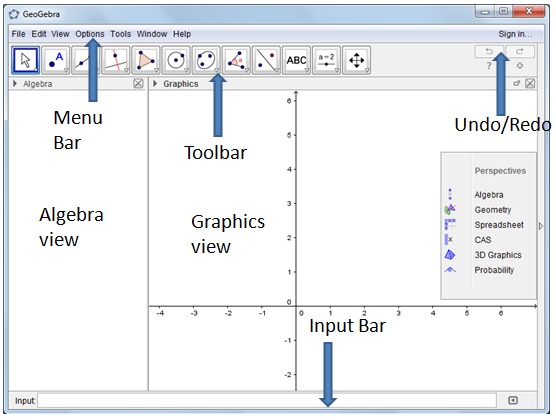
The diagram below is a screen shot of GeoGebra 4.2. The arrangement of buttons in other versions may slightly differ.  Its latest version can be downloaded from www.geogebra.org.  All versions need a Java Virtual Machine that can be downloaded from www.java.com. If you want to get the latest and complete installation package (includes Java), download GeoGebra Webstart otherwise you also need to download and install Java separately.

The  GeoGebra Window

The GeoGebra window is shown in the first figure.  The leftmost pane is the Algebra view, where algebraic descriptions of objects on the Graphics view are displayed.  The Graphics view is where constructions, drawings, and graphs are displayed. By default, the Coordinate axes are displayed when you open GeoGebra.
geogebra 4.2

The uppermost part of the window is the Menu Bar. The menu bar is used for managing files, editing files, and modifying settings.  Below the menu bar is the toolbar where tools for drawing, constructing, measuring, and manipulating objects are shown. The input bar is used for typing equations, algebraic commands, and computations.

The coordinate axes, the algebra window and the input bar can be displayed or hidden using the View menu.

To know more about GeoGebra, you can browse the Help menu after finishing this tutorial.

The Toolbar and the Tools

The toolbar contains the tools that are used to construct objects such as points, lines and other figures. Shown below are the categories of tools and the default tools displayed.
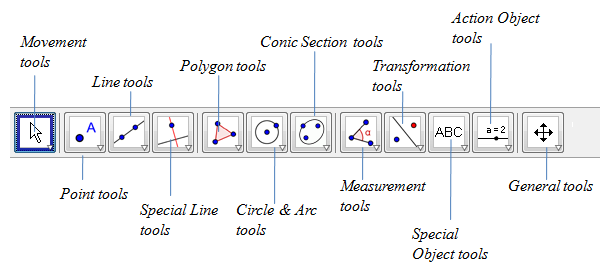
In the diagram above, the Move tool is highlighted by a blue border which means that it is the active tool.  As long as a certain tool is active, it will construct the same drawing or perform the same task. You do not need to click it every time you construct the same object.

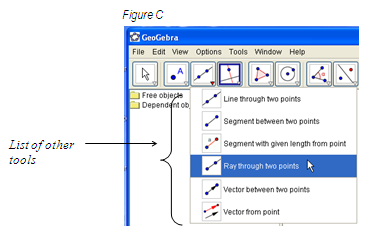
The icon of each tool has a triangular arrow  located at the bottom-right of the tool that you can click if you want to display other tools.  The third figure displays the tools if you click the Line through two points button.
02intropng

If you want to draw a Ray through two points, you just have to click the arrow at the Line through two points tool then click it as shown above. The line icon will be replaced by the ray icon, which means that the latter is now active.

If you have clicked the Ray tool, we say that GeoGebra is in the ray mode. To deactivate the active tool, click Move tool or click the other tools.

Click here to go to GeoGebra Tutorial 1 and click here to view the list of my GeoGebra Tutorial Series.

Related Posts Plugin for WordPress, Blogger...

52 comments on “Introduction to GeoGebra

  1. Pingback: GeoGebra Tutorial 1 « Mathematics for All Ages

  2. Pingback: GeoGebra Tutorial 2 – Constructing an Equilateral Trianlge « Mathematics for All Ages

  3. Pingback: Tutorial 3 – Constructing a Square « Mathematics for All Ages

  4. Josefina G. Belen on said:

    Congratulations, JR. Keep this up!

    JGBelen

  5. Pingback: Graphing Inequalities in GeoGebra « Mathematics and Multimedia

  6. Pingback: Geometer’s Sketchpad Tutorial 1: Constructing an Equilateral Triangle « Mathematics and Multimedia

  7. Pingback: How to use Latex in GeoGebra « Mathematics and Multimedia

  8. Pingback: Parallel Lines and Transversals « Mathematics and Multimedia

  9. Pingback: Geometer’s Sketchpad Tutorial 3: Graphs and Sliders « Mathematics and Multimedia

  10. Pingback: Geonext Tutorial 1 – Constructing an Equilateral Trianlge « Mathematics and Multimedia

  11. Pingback: The Algebraic and Geometric Meaning of Derivative « Mathematics and Multimedia

  12. Pingback: GeoGebra Tutorial Video 1: Constructing an Equilateral Triangle « Mathematics and Multimedia

  13. Pingback: GeoGebra Tutorial Video 2 – Constructing a Square « Mathematics and Multimedia

  14. Pingback: GeoGebra Basic Construction 2 – Isosceles Triangle « Mathematics and Multimedia

  15. Pingback: GeoGebra Tutorial 9 – Vector and Translation « Mathematics and Multimedia

  16. Pingback: Area Tutorial 3 – Area of a Parallelogram « Mathematics and Multimedia

  17. Pingback: Matematik og multimedier « IT Torvet

  18. Pingback: Drawing Stunning Math Diagrams using PowerPoint Part I « Mathematics and Multimedia

  19. Cathy on said:

    Great so far

  20. I like Geo Gebra very much!Thanks

  21. Pingback: Geogebra and Mathematics | Keeping Mathematics Simple

  22. Pingback: Page not found « Mathematics and Multimedia

  23. Pingback: GeoGebra and Mathematics: Investigating coordinates | Keeping Mathematics Simple

  24. Pingback: Free tools every math blogger should learn « Mathematics and Multimedia

  25. Pingback: GeoGebra Essentials 2 – Constructing a Rectangle « Mathematics and Multimedia

  26. Pingback: GeoGebra Essentials 3 – Triangles, Incircles, and Circumcircles « Mathematics and Multimedia

  27. Pingback: GeoGebra Essentials 4 – Angles, Lengths and Object Properties « Mathematics and Multimedia

  28. Pingback: GeoGebra Essentials 5 – The Compass Tool and the SSS Congruence « Mathematics and Multimedia

  29. Pingback: GeoGebra Essentials 6 – Sliders and Rhombuses « Mathematics and Multimedia

  30. ndemupomhito on said:

    How do I draw a number line . I mean a pair of one axis. For example I need only a x-axis and not a y-axis

    • Right click the blank space of the drawing pad, select Graphics view from the context menu. This will display the Graphics View dialog box. Be sure that the Axes tab is selected, then select the y-Axis tab (that is a tab with in a tab), then remove the check from the Check box button and click the Close button. Hope this helps.

  31. Pingback: Andrew's Math Site

  32. Pingback: Best of Mathematics and Multimedia 2010 « Mathematics and Multimedia

  33. Pingback: Another featured post… | ABMath

  34. Pingback: GeoGebra Basic Construction 7 – Rhombus « Mathematics and Multimedia

  35. Pingback: Page not found « Mathematics and Multimedia

  36. Pingback: Who am I | My Non-Mathematics Side

  37. Pingback: GeoGebra Essentials 8 – Graphs and their Properties « Mathematics and Multimedia

  38. Pingback: March 2011 Top Posts « Mathematics and Multimedia

  39. Ed Mendes on said:

    Could you make all tutorials available on pdf format, please? I would like to print them all so that I can try one by one without having to flip from one screen to the programme screen and vice-versa. Many thanks.

  40. Pingback: Math and Multimedia 2011 Quarter 1 Top Posts « Mathematics and Multimedia

  41. Jozef on said:

    He, I am teacher Math and Informatics. I am looking for teacher are working with GeoGebra . I am waiting an answer on e- mail: jozef@orava.sk

  42. Pingback: GeoGebra – free software for teachers and students | School of Freebies

  43. Pingback: Properties of Similar Triangles Part 1 | Mathematics and Multimedia

  44. Pingback: Plot 2d and 3d Graphs and Functions with GraphCalcMathematics and Multimedia

  45. Pingback: GeoGebra Essentials SeriesMathematics and Multimedia

  46. I should like to have you talk to school teachers whom I plan to introduce GeoGebra. Please add Skype name: sebastianpanakal as your Skype contact and let us discuss about it.

    • Guillermo Bautista on said:

      Hi Sebastian,

      Thank you very much for inviting me. I would love to talk to your school teachers, if time will permit. We have a lot of deadlines this month.

      Guillermo

  47. Pingback: Introduction to GeoGebra « Моя копилка

Leave a Reply

Your email address will not be published. Required fields are marked *

*

You may use these HTML tags and attributes: <a href="" title=""> <abbr title=""> <acronym title=""> <b> <blockquote cite=""> <cite> <code> <del datetime=""> <em> <i> <q cite=""> <strike> <strong>